It’s now possible to configure your Automation Rules to trigger based on an order’s Due Date! This new Due Date trigger type should help you stay on top of your deadlines by automatically taking action when orders are approaching their due dates; are due today; or become overdue. You can use this new trigger type to automatically send reminder emails to yourself, your staff, or custom recipients before an order’s deadline, or to change the order’s stage to something more urgent like “Must Ship Soon” or “Overdue.”
How it works
To get started, you’ll need to create a new automation rule1 and when prompted for the event that will trigger the rule, select “When an order’s due date is approaching.” You can then configure one or more timing windows which will activate the rule:
- Due in 7 days: Triggers the rule 7 days before an order is due, based on your account’s timezone.
- Due in 3 days: Triggers 3 days before the order is due.
- Due in 1 day: Triggers the day before the order is due.
- Due today: Triggers on the day an order is due.
- Overdue: Triggers one day after the due date has passed.
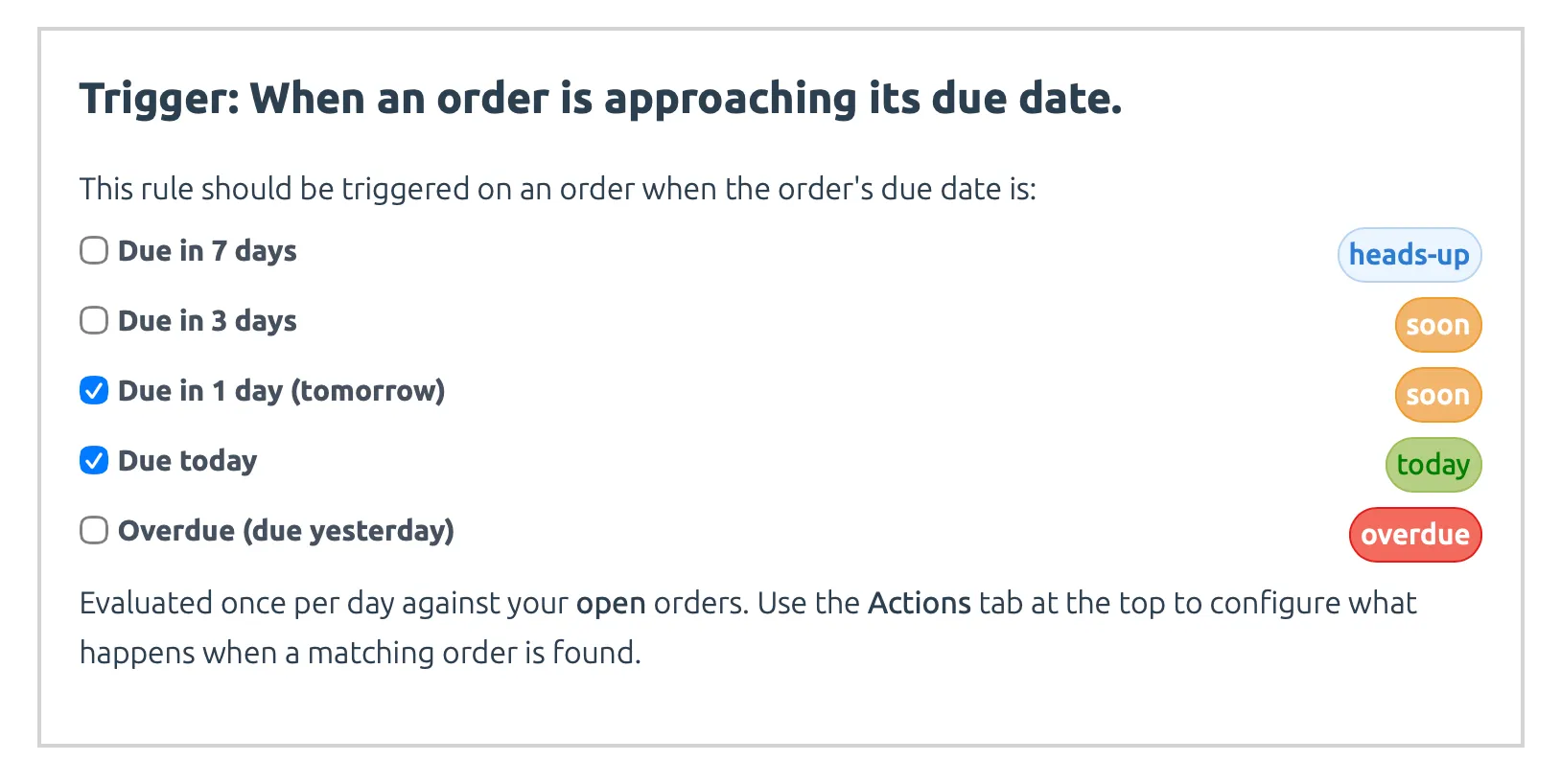
Due Date rules operate on batches of orders, grouped by timing
Once per day, Stages checks your open orders and runs the rule’s actions against every order whose Due Date falls within your configured windows. Right now, a Due Date rule can have two types of actions: Send an automated email, and Change the order’s stage. It’s important to understand that, where other Automation Rules operate on one order at a time, rules triggered by a Due Date trigger operate on batches of orders, grouped up by configured timings. This has a couple implications for emails2 sent by the rule:
- Instead of sending a dozen emails (one for each order), the rule batches them up into a single email.
- Because orders are batched up, the emails cannot be sent to your customers (they’d receive a list of all orders that triggered your email).
When you create an email action using a Due Date trigger, the email’s special template variables change to incorporate the batch of orders:
{{batch.orders}}: A list of all orders that matched this Due Date trigger’s timing. Loop over it with{{each batch.orders}}and end the loop with{{end}}.{{batch.timing}}: A user-friendly string describing the timing (e.g. “Due”, “Due in 1 day”, “Overdue”).{{batch.timingDays}}: A number representing the offset from today (e.g. 0 for today, 1 for tomorrow, -1 for overdue).{{batch.dueDate}}: The batch’s due date (e.g. “May 27, 2026”).{{batch.duedateShort}}: The batch’s due date in short format (e.g. “05/27/2026”).{{batch.duedateEuro}}: The batch’s due date in European format (e.g. “27/05/2026”).{{batch.duedateFull}}: The batch’s due date in full format (e.g. “Friday, May 22, 2026”).
Since the batches are grouped by timing (Due in 7 days, Due in 3 days, Due in 1 day, Due today and Overdue), all of the orders in the batch will have the same due date. Here’s an example email that sends a list of orders to the team when those orders become due today or in one day:
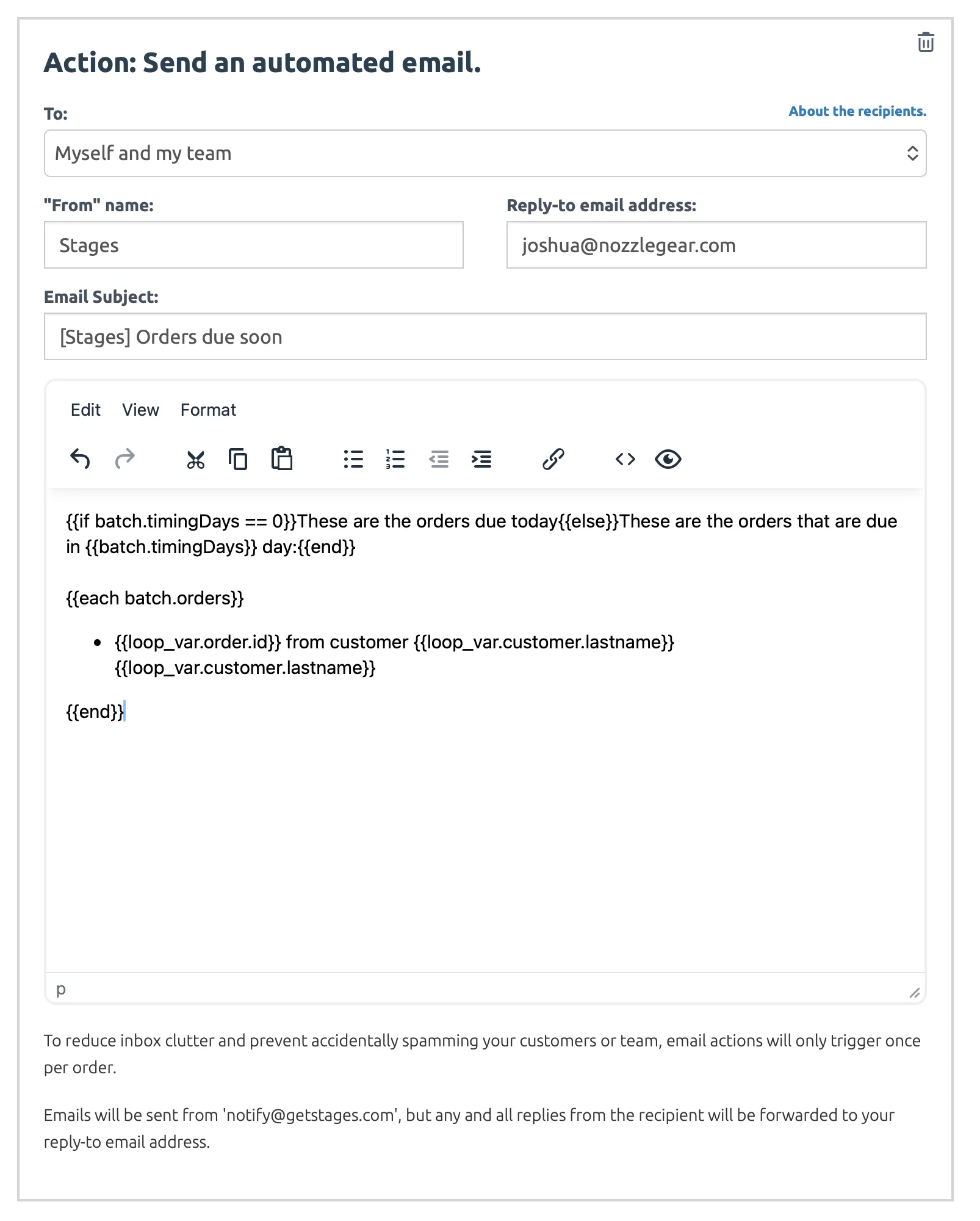
Timezone settings
After you’ve configured your new automation rule, you’ll want to adjust your account’s timezone setting for the first time. All accounts use the UTC timezone by default, but a new Account Timezone setting page has been added to the Account Settings page to support the Due Date trigger feature. This setting controls the timezone for when orders cross those timing thresholds – i.e. if your company is in California (-8 UTC) or Singapore (+8 UTC), you probably don’t want an order becoming “Overdue” and firing off those actions at 0 UTC, which would be eight hours ahead or behind when you’d expect it, respectively.
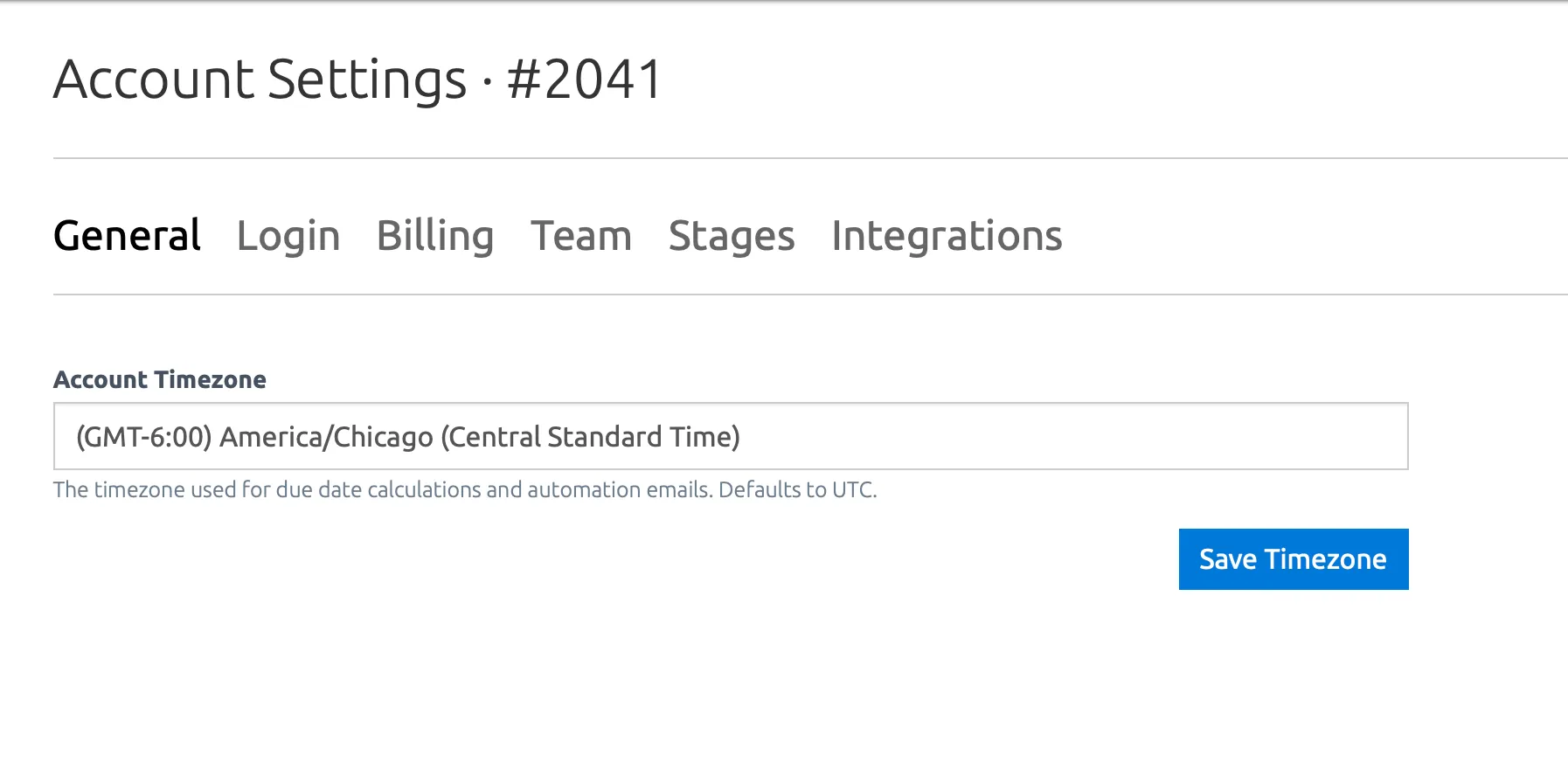
Note: only the account owner can change the account’s timezone settings.
Important notes
- On the order dashboard, due dates are displayed in your own local timezone, but the automation rules are triggered in your account’s timezone.
- Orders without a due date are never matched by a Due Date trigger.
- One automation rule can never trigger another rule, even if it changes an order’s stage.
- Email actions only trigger once per day to prevent spam.
If you have any questions or suggestions regarding this feature, please let me know by sending an email to joshua@getstages.com.
Footnotes
-
Due Date triggers can’t be mixed with other traditional triggers, as they operate on batches of orders rather than one order at a time. ↩
-
Batching has no notable effect on changing the stages of orders, though, except the usual caveat that changing an order’s stage via Automation Rule will not trigger additional automation rules. ↩