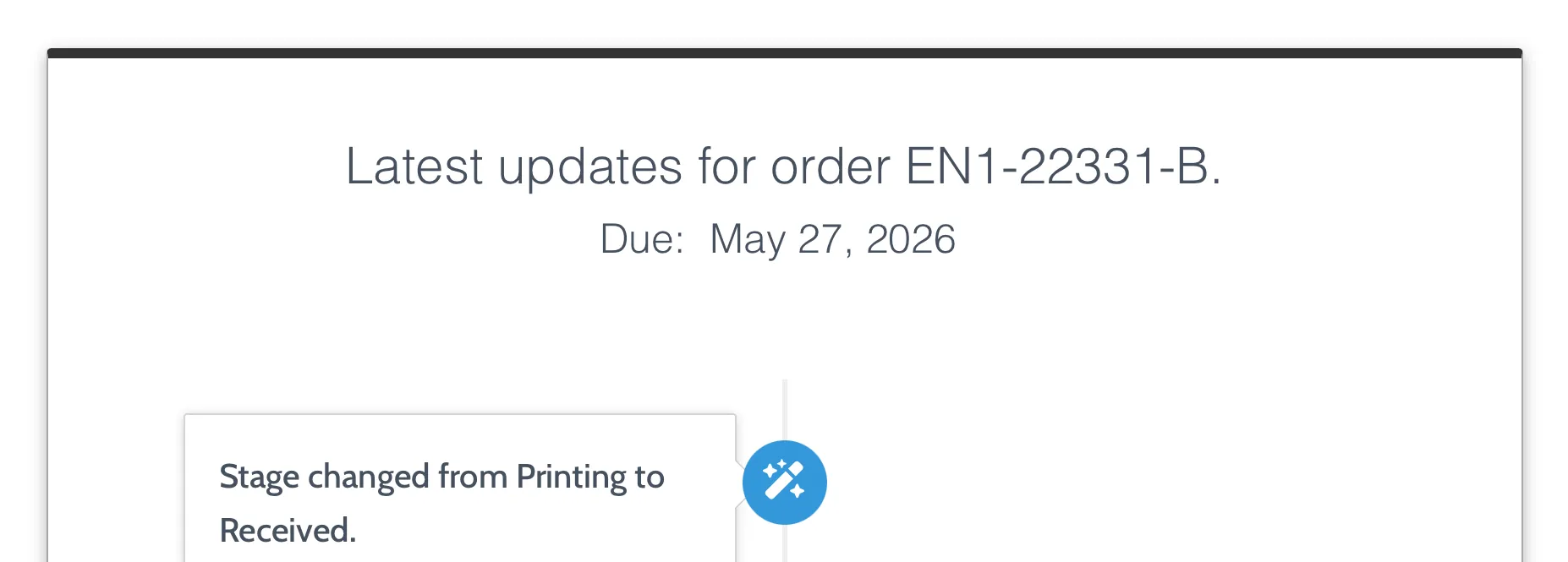
Your customers can now see when their order is due right from the Stages Tracking Widget that’s embedded in your storefront! This new setting – turned off by default – helps set clear expectations for your customer’s delivery, and gives them better visibility into their order’s timeline. This feature works great alongside our new Due Date automation triggers, giving you full control over how due dates are managed and communicated to your customers and your team throughout your fulfillment process.
How to enable it
This feature is turned off by default, as it’s assumed that some users may wish to keep an order’s due date internal to the business. To turn the feature on and allow customers to see the due date, navigate to the app’s Embed Page in your Stages dashboard. Under the “Widget options” section, check the box that’s labeled “Show order due date on the tracking widget”.
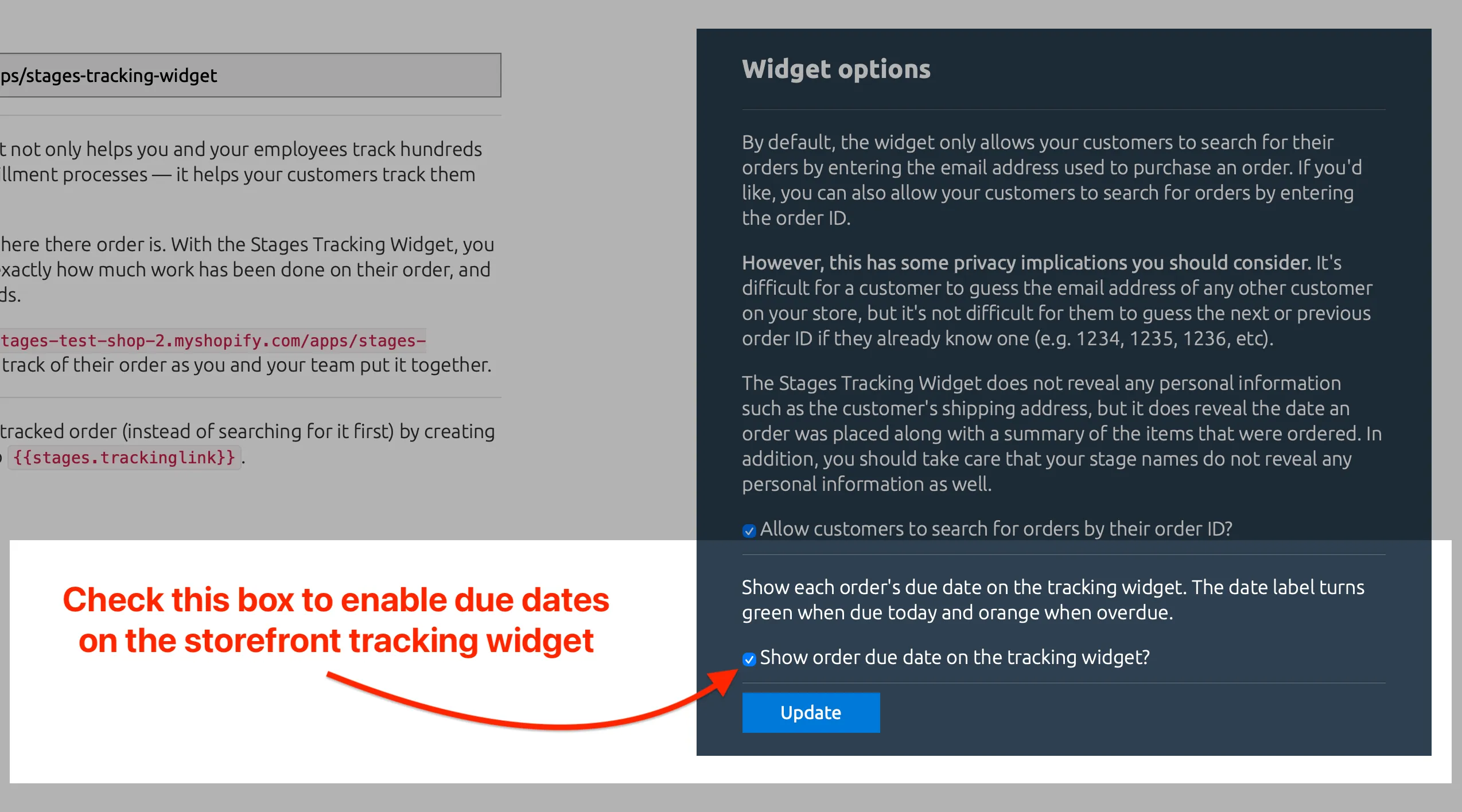
Click the Update button to save your changes. Once enabled, any order with a due date will display it on the tracking widget, which can always be found on your storefront at yourstore.com/apps/stages-tracking-widget. You can also use the {{stages.trackingLink}} variable in your Automation Rule emails to link directly to that page.
Color-coded due dates
The due date label automatically adjusts its color to help customers quickly understand the status:
- Green: The order is due today
- Orange: The order is overdue
- Default: The order is due in the future
Privacy considerations
The due date is displayed to anyone who can access an order on the tracking widget. Make sure this aligns with the level of information you want to share with your customers. If you prefer to keep due dates internal, just leave this setting disabled.
If you have any questions or suggestions regarding this feature, please let me know by sending an email to joshua@getstages.com.