Ever wanted to import only certain types of orders into the Stages app? Maybe it’d be useful to filter your orders so that only those containing specific products or product collections (custom apparel, for example) are imported, while other orders are ignored; or perhaps you only want to bring in orders that have a certain tag, or a value between e.g. $100 and $200?
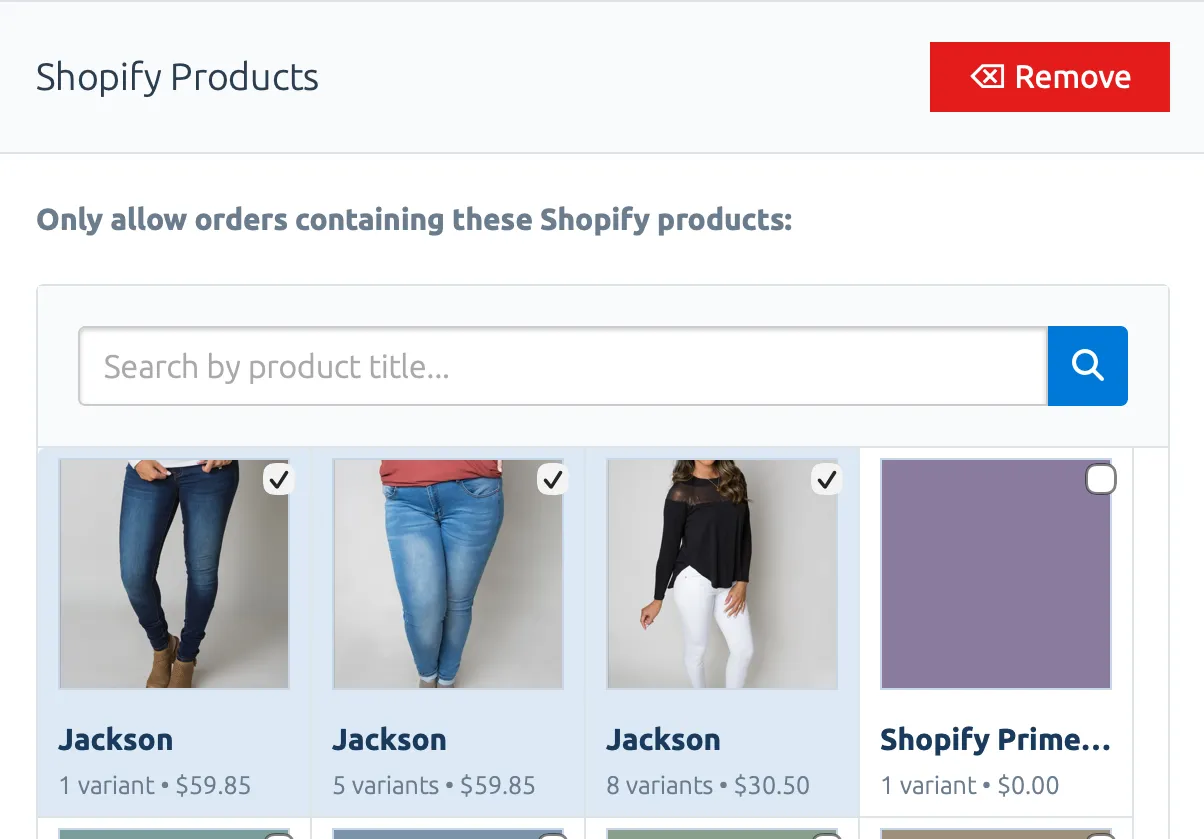
I’m happy to announce that this is now possible using the brand new Order Filters feature for Stages! This is easily one of the most requested and anticipated features I’ve had since starting development on this app over a decade ago. At it’s core, the Order Filters feature lets you create rules to decide which of your Shopify orders should be pulled into the Stages app. Up until this point, Stages has always assumed that any order placed on your store is also an order that you want imported into Stages. How better to track it across your manufacturing and fulfillment processes?
Well, the answer to that rhetorical question is that – depending on what you sell on Shopify – you might not want, or even need, to track every order in a third-party app! With this new feature, you can create a rule that will filter orders into and out of the Stages app based on a set of criteria that you define, including:
- Shopify Products: Match orders containing specific products
- Product Collections: Match orders with products from specific collections
- Order Value: Filter by total order amount
- Order Tags: Filter by tags on the order
I’ve got plans to add support for more criteria as well, including Shopify metafields, Customer identifiers (e.g. names, business name, tags), and more!
Order Filters in Stages use allow list logic, which means each time an order is placed on your Shopify store, it’s evaluated against the rules in your filters to see if they’ll allow it into the app. Think of the filters like a bouncer standing outside the entrance to a popular club, trying to figure out if you put the order’s name on the list of VIPs. If one of your Order Filters evaluates to true, i.e. the order’s properties match the conditions you’ve set on the filter, the order is allowed into the app, saved to your dashboard, and your Automation Rules are run.
On the other hand, if none of your Order Filters evaluate to true – or you just don’t have any set up – then the Shopify order will be evaluated against a new, account-wide setting called the Global Skip Behavior.
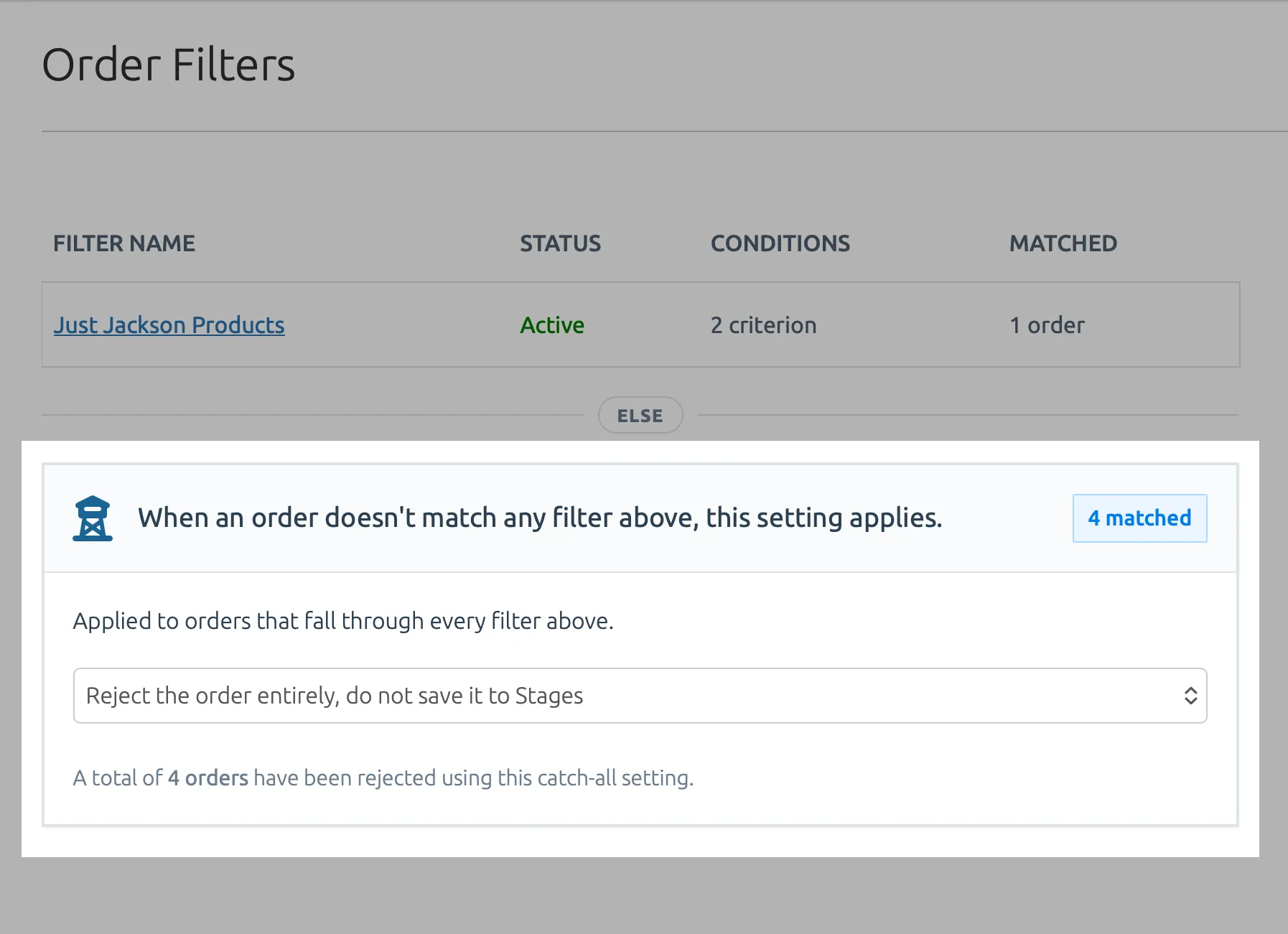
This is a “catch-all” setting for any order that isn’t allowed in by a filter, and it can have three different modes:
- Allow the order, save it to your dashboard in the Stages app, and run any applicable Automation Rules. This is the default behavior, and how the Stages app has historically treated incoming orders.
- Allow the order but skip Automation Rules, which does what it says on the tin: allow the order into the app, save it to your dashboard, but don’t run any rules or send any automated emails.
- Reject the order, don’t save it to the Stages app, and don’t run any Automation Rules.
You can get started creating your first Order Filter by heading to the new Order Filters page right here, and you can modify your account’s Global Skip Behavior setting here (remember: the default is to allow all orders and to evaluate your automation rules against each order – this is how Stages has always treated orders before the new feature.)
Documentation
Documentation for the new Order Filters feature, the Global Skip Behavior setting, and the Activity Logs page that gives you a birds-eye view into what it’s all doing, can be found right here: