Order Filters in Stages use allow list logic, which means each incoming order on your Shopify store is evaluated against the rules and criterion in your filters to see if they’ll allow it into the app to be processed. Think of the filters like a bouncer standing outside the entrance to a popular club, trying to figure out if you put the order’s name on the list of VIPs. If one of your Order Filters evaluates to true, i.e. the order’s properties match the conditions you’ve set on the filter, the order is allowed into the app, saved to your dashboard, and your Automation Rules are run.
If the order doesn’t pass the first Order Filter (i.e. it’s not allowed by it), then the next Order Filter is evaluated, and so on. The first matching Order Filter wins. If none of your Order Filters evaluate to true – or you just don’t have any set up – then the Shopify order has one final chance by being evaluated against your account’s Global Skip Behavior setting.
This is a “catch-all” setting for any order that isn’t allowed in by a filter, and it can have three different modes:
- Allow the order, save it to your dashboard in the Stages app, and run any applicable Automation Rules. This is the default behavior, and how the Stages app has historically treated incoming orders.
- Allow the order but skip Automation Rules, which does what it says on the tin: allow the order into the app, save it to your dashboard, but don’t run any rules or send any automated emails.
- Reject the order, don’t save it to the Stages app, and don’t run any Automation Rules.
When it’s used
Section titled “When it’s used”The Global Skip Behavior is used when:
- A Shopify webhook is received (order created, updated, fulfilled, or deleted)
- None of your account’s Order Filters match the incoming order
Only at that point will, after exhausing all existing Order Filters on your account and failing to find a match, will the Global Skip Behavior be evaluated and applied to the order.
Configure the Global Skip Behavior
Section titled “Configure the Global Skip Behavior”You can configure your account’s Global Skip Behavior setting by heading to the Filters page and scrolling to the bottom of the page:
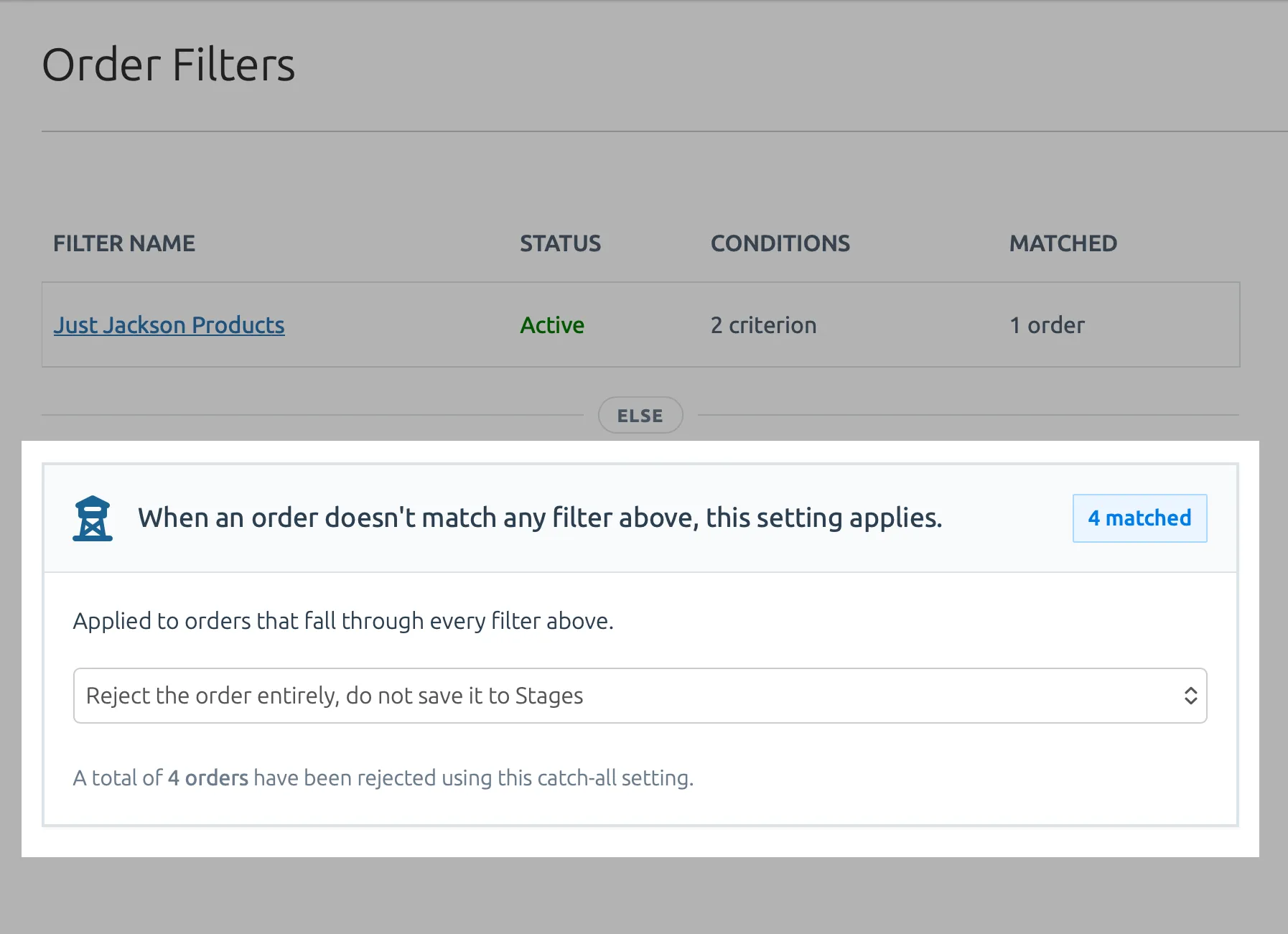
Select the behavior your prefer from the dropdown on this form, and then click the Save button to update your account’s Global Skip Behavior.