Exporting Orders
Section titled “Exporting Orders”The Export Orders button on the Orders dashboard lets you export all of the orders on your Stages account to a CSV file, which you can then open in Excel, Google Sheets, Numbers, or any other spreadsheet program/app. To begin, click the Export Orders button at the top of the Orders dashboard.
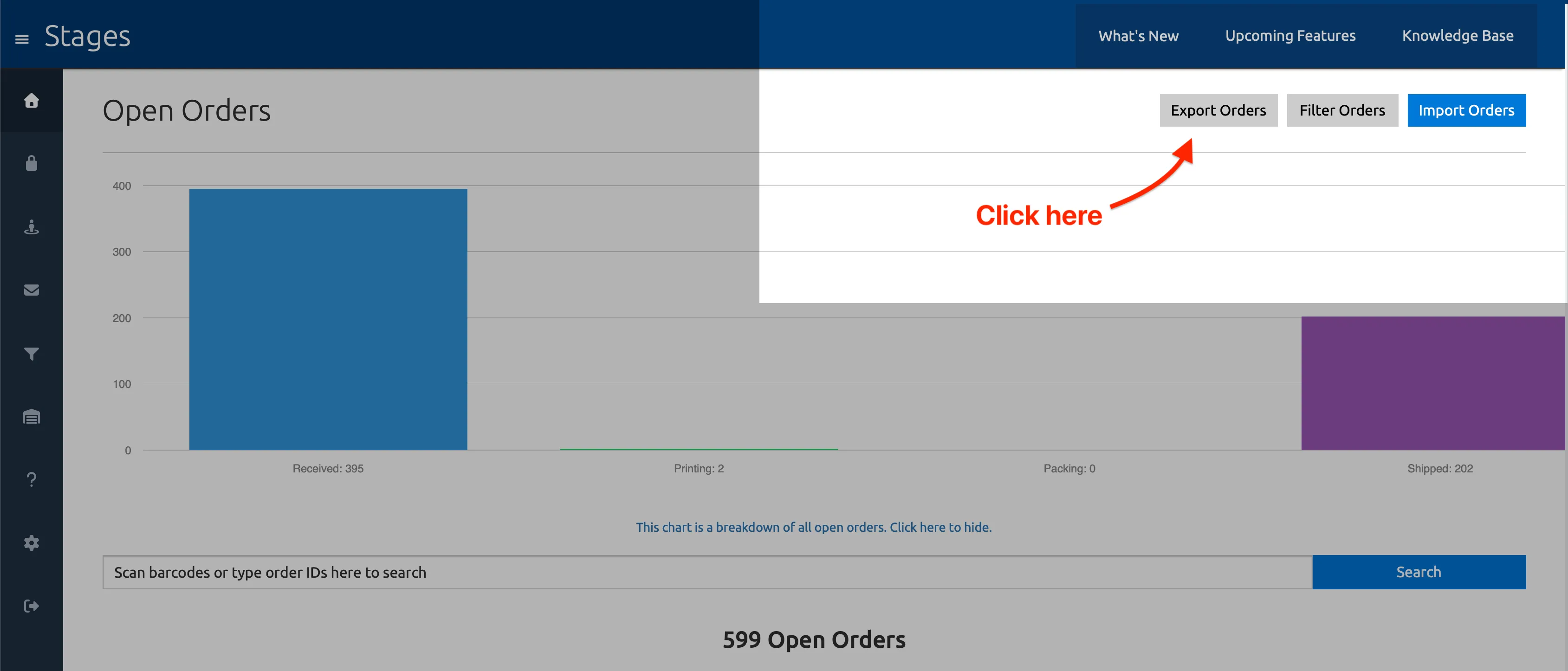
This will open the dialog, and you’ll be asked which of your orders you want to export – Open, Closed or both. You can also choose to export only orders with a specific stage, e.g. “Shipped” or “Printing”.
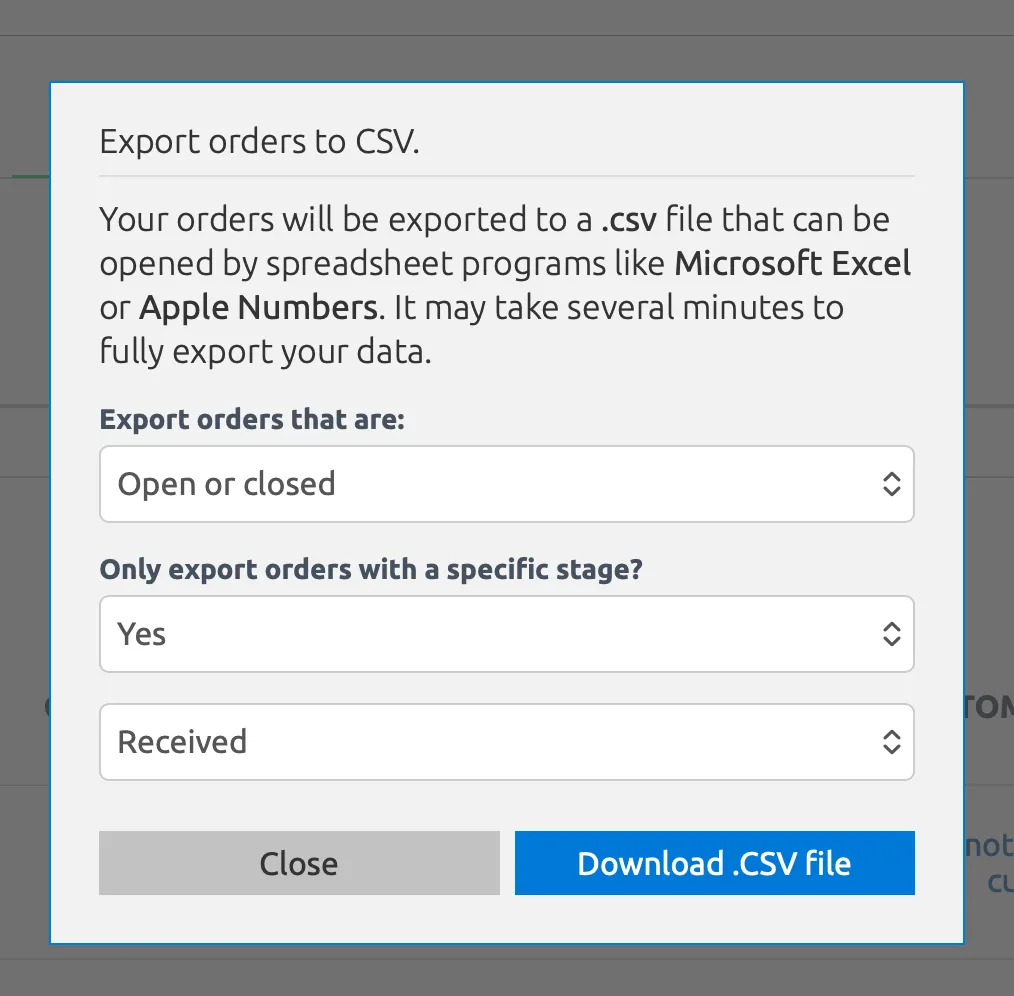
The export may take several minutes for large sets of orders. Don’t close the dialog, refresh the page or navigate away. Once the export is ready, your browser will prompt you to save the CSV file.