The Activity Logs page gives you a centralized overview of everything your Order Filters are doing. Every Shopify order that hits the app goes through the Order Filters system has the result of its evaluation logged and stored here, on the Activity Logs page. That happens even if you don’t have any Order Filters set up, in which case the orders fall through to your Global Skip Behavior setting instead.
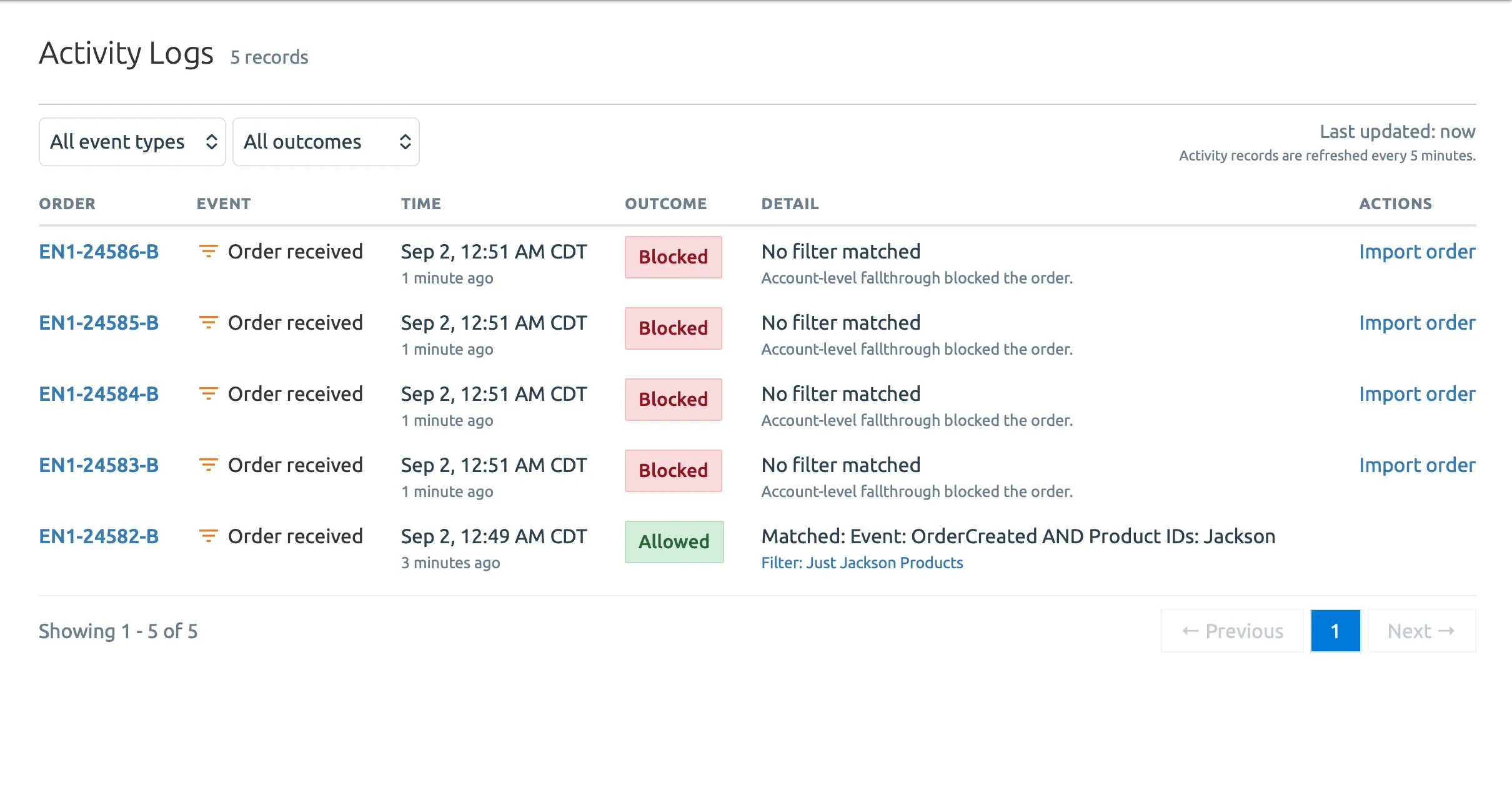
This legend explains each column in the Activity Logs table and the information it contains:
| Column | Description |
|---|---|
| Date/Time | When the order was processed |
| Event Type | The type of Shopify order event that triggered the evaluation (e.g. Order Created, Order Updated, Order Fulfilled, Order Deleted.) |
| Order ID | The Shopify order’s ID |
| Outcome | How the order was ultimately handled (see below) |
| Filter | Which filter matched the order, or “Global” for orders that fell through and hit the Global Skip Behavior setting |
| Actions | Available actions (e.g. Import an order that was blocked) |
Filter match versus fallthrough
Section titled “Filter match versus fallthrough”When an order is matched by a filter, the log records which filter, specifically matched the order. It also records which of the filter’s criteria were used to match the order (e.g. which order tags matched, or which Shopify products were found, and so on.)
On the other hand, if an order does not match any of your account’s Order Filters – or if your account just doesn’t have any filters set up – then it will “fall through” and be evaluated against your account’s Global Skip Behavior. When this happens, the Filter column will note that the order was matched against your Global Skip Behavior.
Outcome types
Section titled “Outcome types”Each log record has an Outcome column, which indicates how the order was ultimately handled by the Stages app. There are four possible outcomes:
| Outcome Code | Description |
|---|---|
allowed_by_filter |
The order matched a specific Order Filter and was allowed through. |
global_allow |
The order fell through all filters; Global Skip Behavior was set to Allow, order was allowed through. |
global_skip_automation_only |
The order fell through all filters; Global Skip Behavior was set to Skip Automation Only, order was allowed through, but Automation Rules were not run. |
global_skip_entirely |
The order fell through all filters; Global Skip Behavior was set to Skip Entirely, order was blocked. |
Importing a blocked order
Section titled “Importing a blocked order”An order being blocked by your Global Skip Behavior settings doesn’t have to mean the end of the road for the order. For any blocked order on the Activity Logs page, you’ll find an Import link in the Actions column.
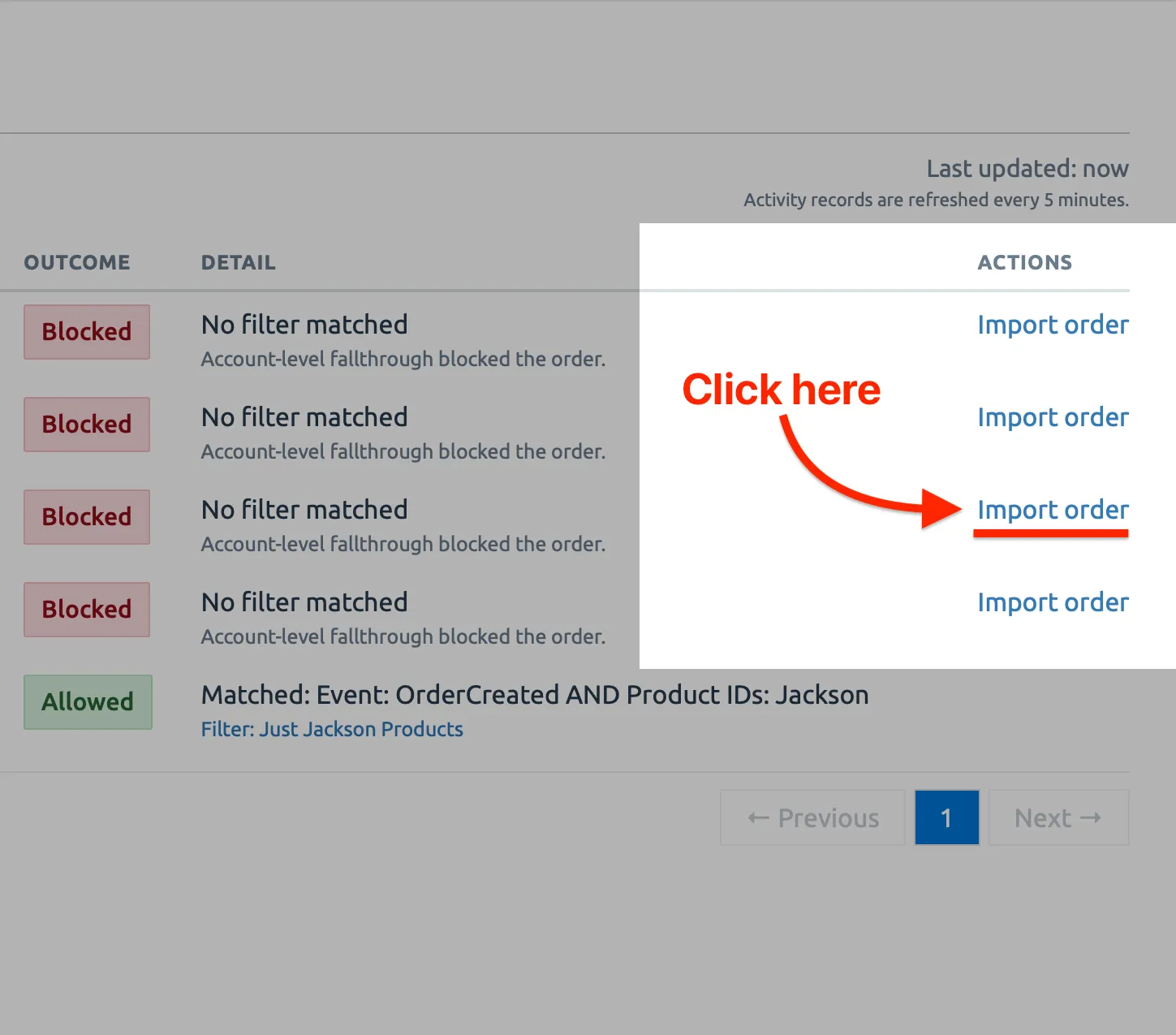
Clicking it will open a dialog which asks if you want to import the order into Stages. To do so, you just need to tell the app which of your stages the new order should be set to, then click the Import button to confirm.
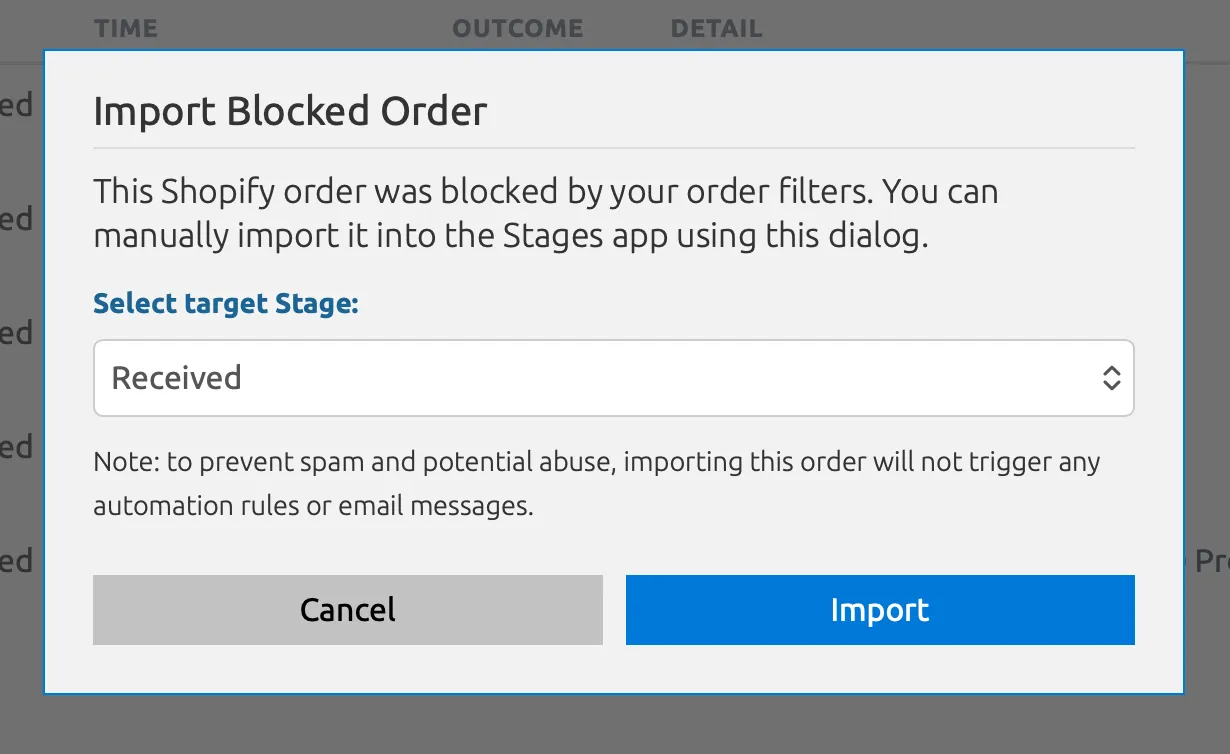
The import should only take a few seconds. Once finished, the order will be saved to your Orders dashboard, but this initial import action will not trigger any of your automation rules.
Logs are refreshed every 5 minutes
Section titled “Logs are refreshed every 5 minutes”You may note that there’s a bit of a delay between when an order is placed on your store and when it shows up on the Activity Logs page. This discrepancy is intentional: for performance reasons, the records on this page are only updated every 5 minutes. The page keeps track of the last time you updated it:
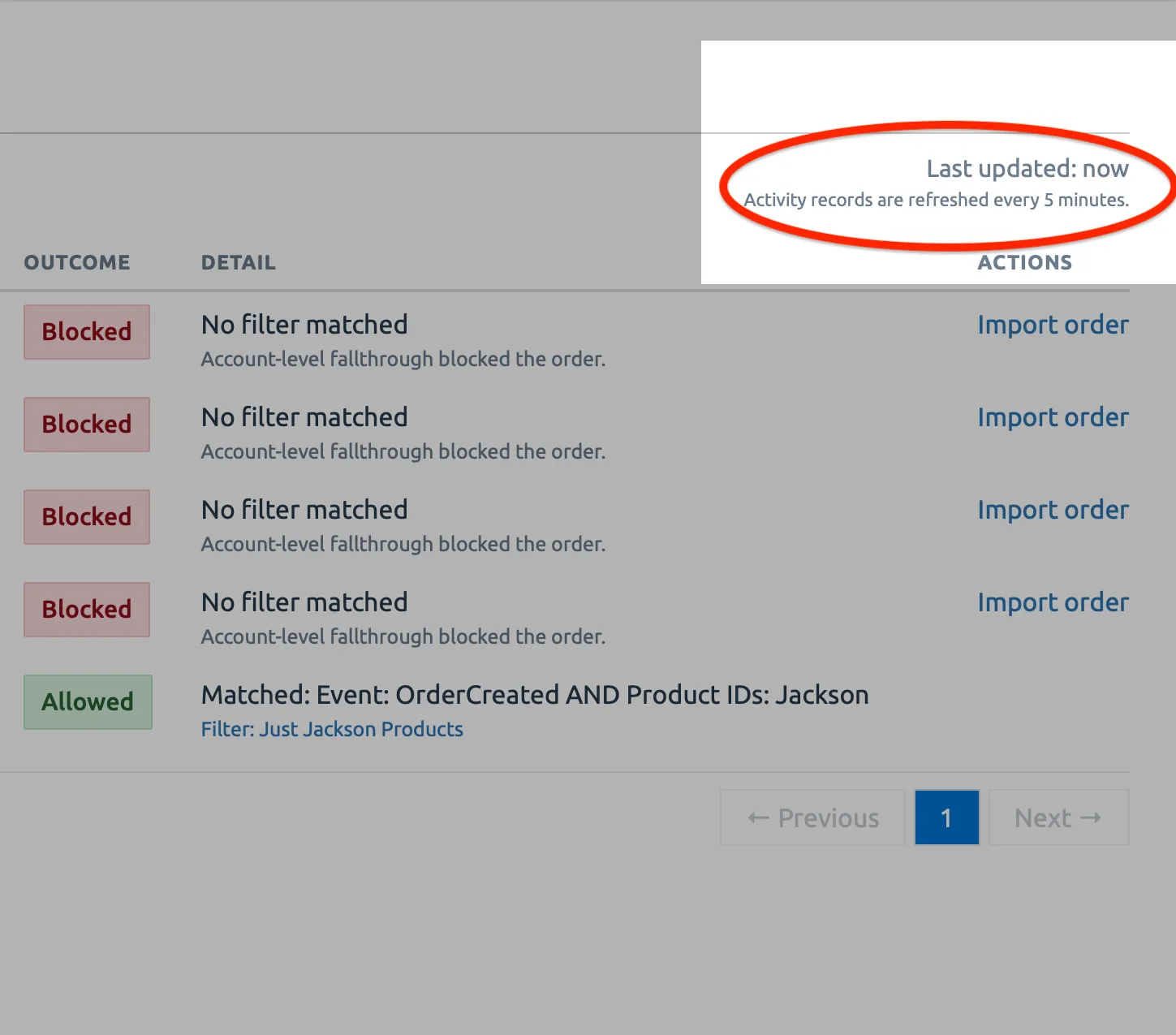
While the Activity Logs page is only updated every 5 minutes, your orders are still processed by the Stages app immediately, as they happen.